Why I Love the Logitech MX Mechanical as a Developer
Disclosure: This post contains an Amazon affiliate link. If you purchase through the link below, I may earn a small commission at no extra cost to you.
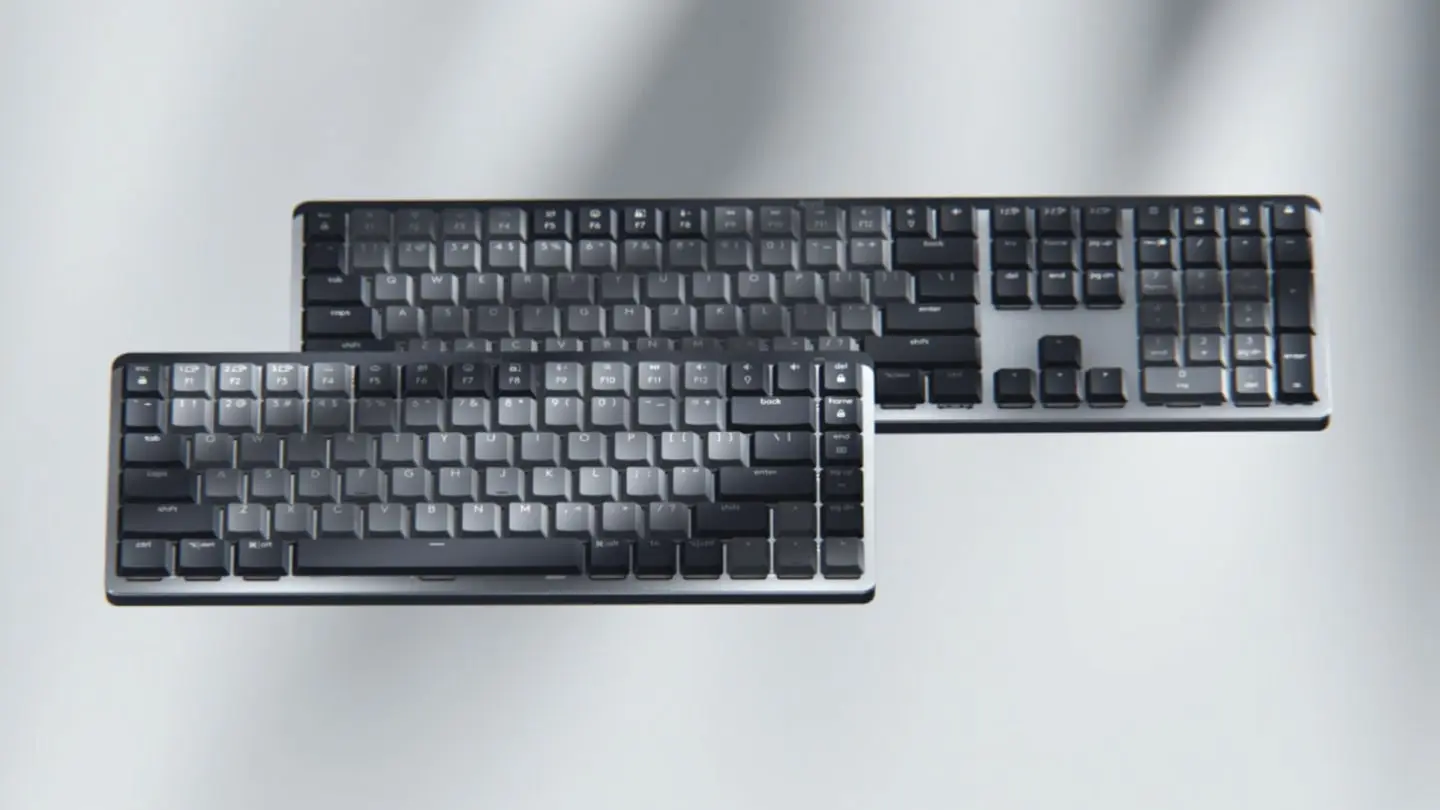
If you type for hours—debugging, writing code, or documenting—your keyboard matters. Loud clicky switches can annoy coworkers or wake the family. Membrane boards feel mushy after a while. And if you juggle multiple machines—a dev box, a personal laptop, maybe an iPad—constantly swapping keyboards is a pain. The Logitech MX Mechanical addresses all of that. It's a full-size mechanical keyboard built for long sessions, quiet environments, and multi-device workflows.
Tactile Quiet switches
The MX Mechanical uses Tactile Quiet mechanical switches: you get a satisfying bump on each keypress without the clatter. That feedback helps with precision—especially when you're hammering shortcuts or alternating between typing and mouse work. And because it's quiet, it works in open offices, on calls, or next to someone sleeping. No need to swap to a laptop keyboard when you need to be discreet.
Low-profile ergonomics
Low-profile mechanical keys put your wrists at a more natural angle than tall, traditional mechanical boards. The full-size layout includes a number pad, which is handy for terminal work, spreadsheets, or any workflow that leans on digits. After a full day of coding, the difference is noticeable—less strain, more comfort, and keys that feel precise without requiring a heavy press.
Multi-device, multi-OS
You can pair the MX Mechanical with up to three devices—via Bluetooth Low Energy or the included Logi Bolt USB receiver. Switch between them with a button. That means one keyboard for your Linux dev machine, your MacBook for side projects, and your iPad for reading docs. It works on Windows, macOS, Linux, Chrome OS, iOS, and Android. No more cable swapping or separate keyboards per machine.
Smart illumination
The backlit keys turn on when your hands approach and adjust to the room. In a dim home office or during late-night sessions, you don't have to think about it—the keys light up when you need them and dim when you don't. It saves battery and keeps the setup clean.
Customization via Logi Options+
Logi Options+ (free, for Windows and macOS) lets you remap Fn keys, tweak backlighting, and—if you pair it with an MX mouse—enable Flow for cross-computer control. Copy on one machine, paste on another. Move the cursor across screens as if they were one desktop. For developers who work across multiple machines or monitors, that workflow is hard to give up once you've tried it.
Battery life
USB-C charging keeps things simple. With backlighting on, you get around 15 days per charge; with it off, up to 10 months. No AA batteries, no dongle drama—just plug in occasionally and keep coding.
Bottom line
The MX Mechanical hits a sweet spot: mechanical feel without the noise, ergonomic layout for long sessions, and multi-device support that fits how many developers actually work. It typically runs around $170–$180, and you can often find it on sale—Amazon and other retailers run discounts periodically, so it's worth watching for a deal. If you're in the market for a mechanical keyboard built for long coding sessions, the MX Mechanical on Amazon is worth a look.
Thanks for reading!
If you found this helpful, consider sharing it with others.
JavaScript Challenges That Trump the Normal Developer
Tricky JS puzzles that trip up even experienced devs—closures, this, coercion, and the event loop.
What No One Tells You About Publishing Your First iOS App Solo
Submitting TRASH DAY to the App Store wasn't hard—but it was a lot of steps. Here's what caught me off guard as a solo developer going through the process for the first time.